Admin Tokens
Page summary:
Admin tokens authenticate programmatic access to the Strapi Admin API. Each token is scoped to a subset of its owner's permissions and is designed for automation workflows such as MCP agents, CI/CD pipelines, and scripts.
Admin tokens allow automated clients to authenticate requests to the Strapi Admin API. For authenticating requests to the Content API, see API Tokens.
Admin tokens and API tokens are strictly separated: an Admin token is rejected on Content API routes, and a Content API token is rejected on admin routes.
Free feature
Minimum "Access the Admin tokens settings page" in Roles > Settings - Admin tokens
Available and activated by default
Available in both Development & Production environment
Configuration
Admin tokens are configured entirely from the admin panel. No code-based configuration is specific to Admin tokens. The shared salt and encryption key that apply to all token kinds are set via apiToken.salt and apiToken.secrets.encryptionKey in your /config/admin file (see API tokens).
Path to configure the feature: Settings > Administration Panel > Admin Tokens
Creating a new Admin token
-
Click on the Add new Admin Token button.
-
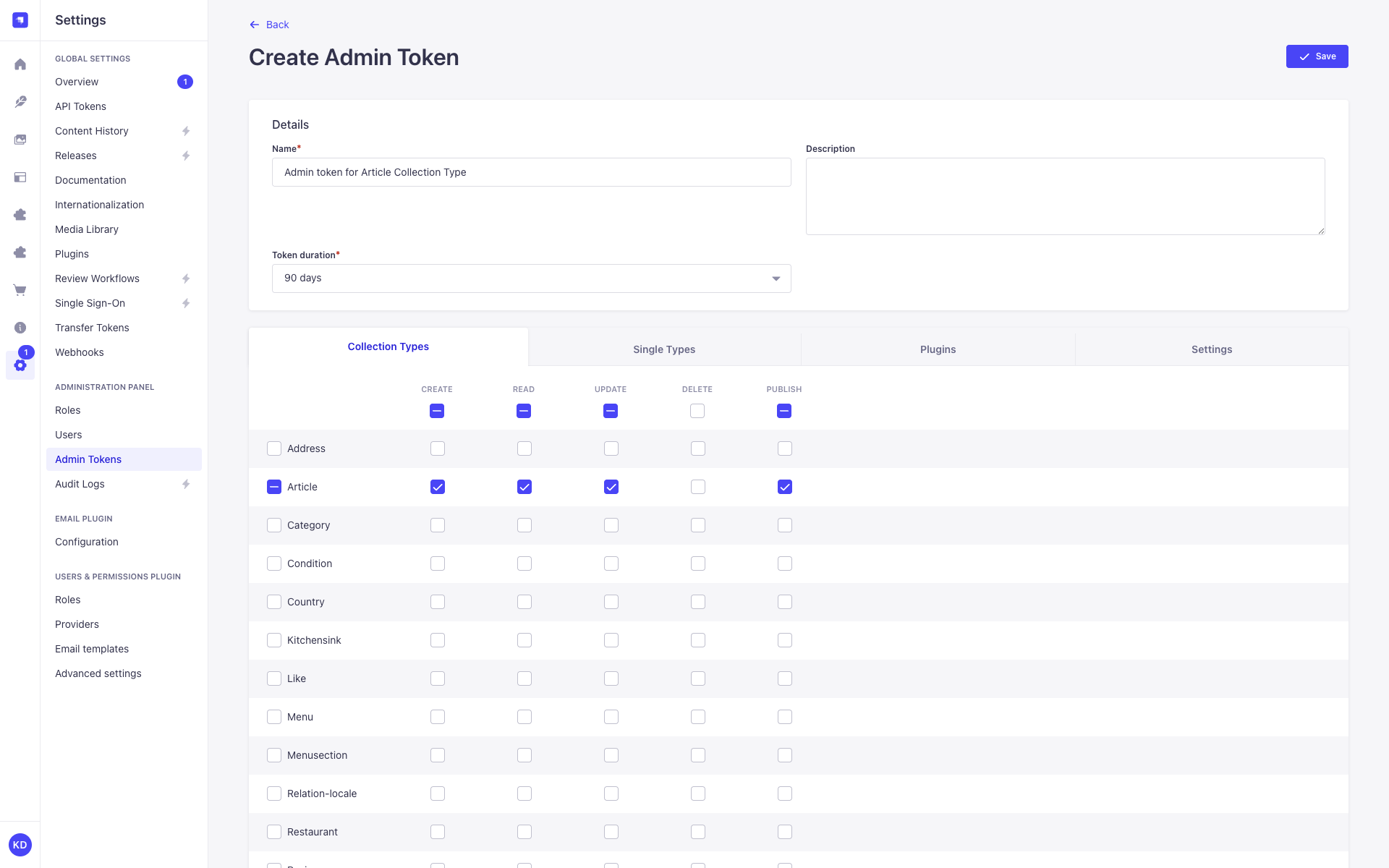
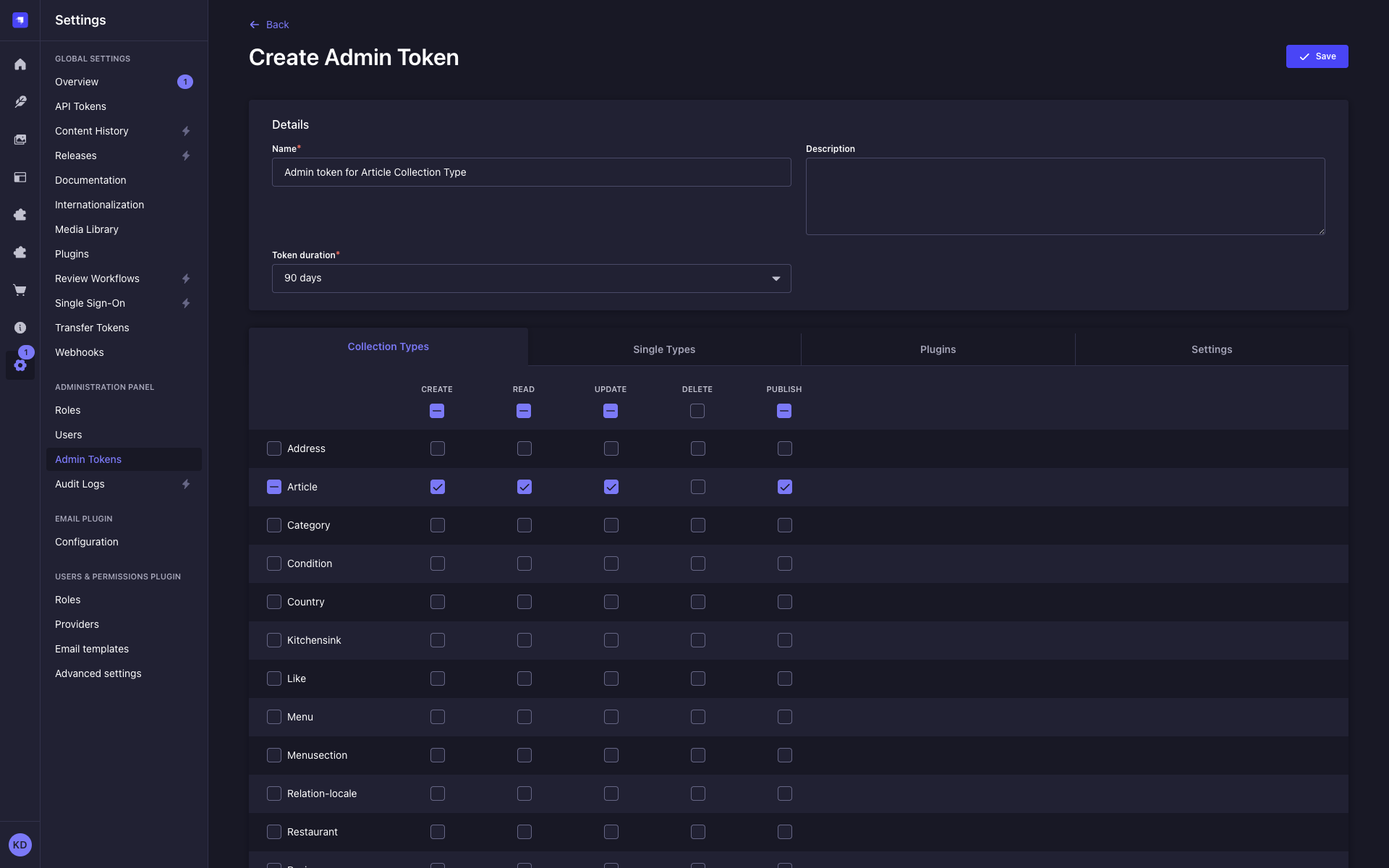
In the token creation form, configure the new Admin token:
Setting name Instructions Name Write the name of the token. Description (optional) Write a description for the token. Token duration Choose a duration: 7 days, 30 days, 90 days, or Unlimited. -
Define which admin actions this token can perform:
- Click the tabs below the form to browse permission categories.
- Use the checkboxes to enable or disable individual permissions.
NotePermissions that the current user does not hold appear disabled and cannot be selected. Conditions applied to the owner's role are shown as read-only and apply automatically to the token.
-
Click on the Save button. The new Admin token will be displayed at the top of the interface, along with a copy button .
The plaintext token key is shown only once, immediately after creation or regeneration. The admin.secrets.encryptionKey configuration that makes Content API token keys persistently viewable does not apply to Admin tokens. Admin token keys are always restricted to the token owner, regardless of encryption configuration.
Managing Admin tokens
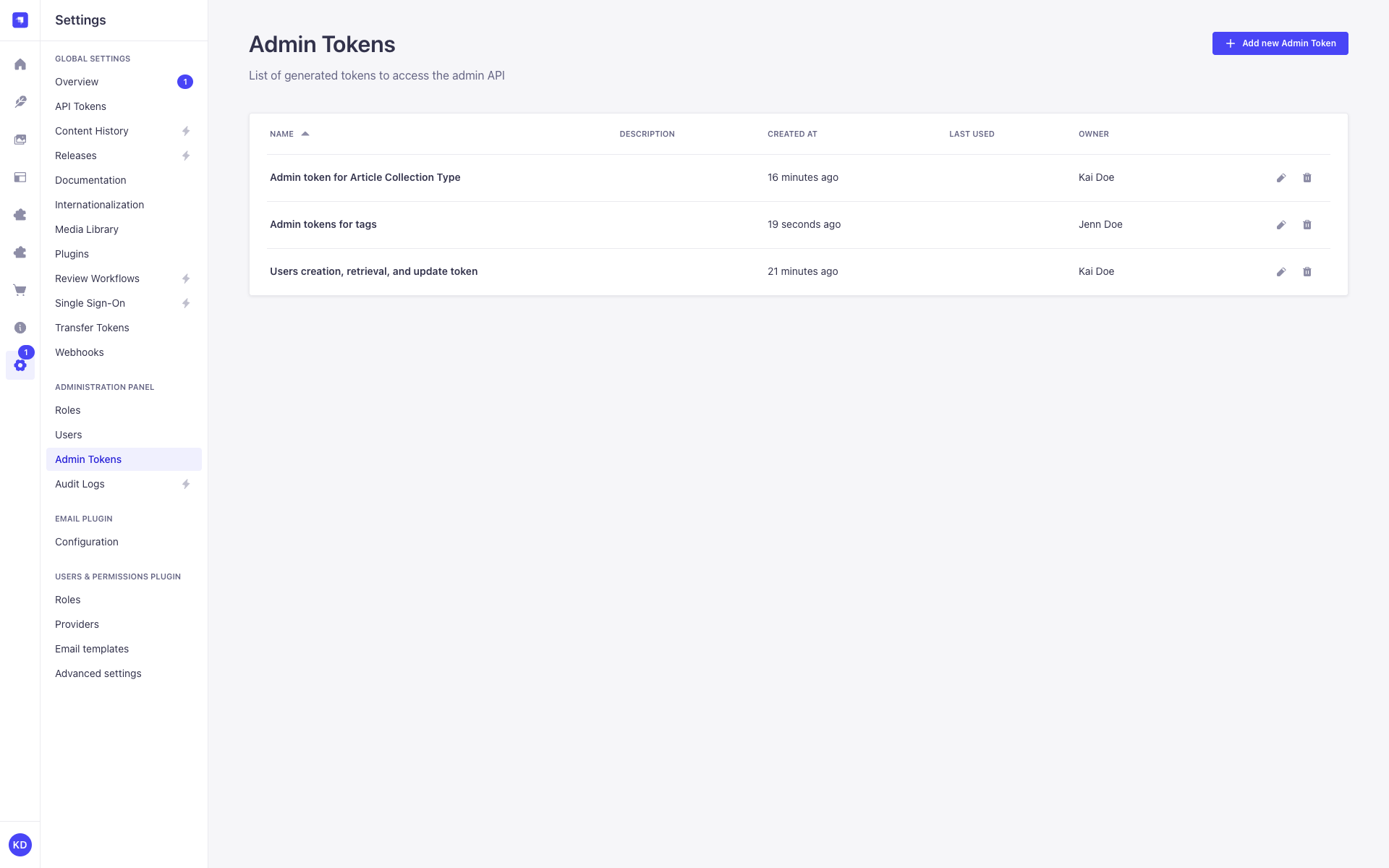
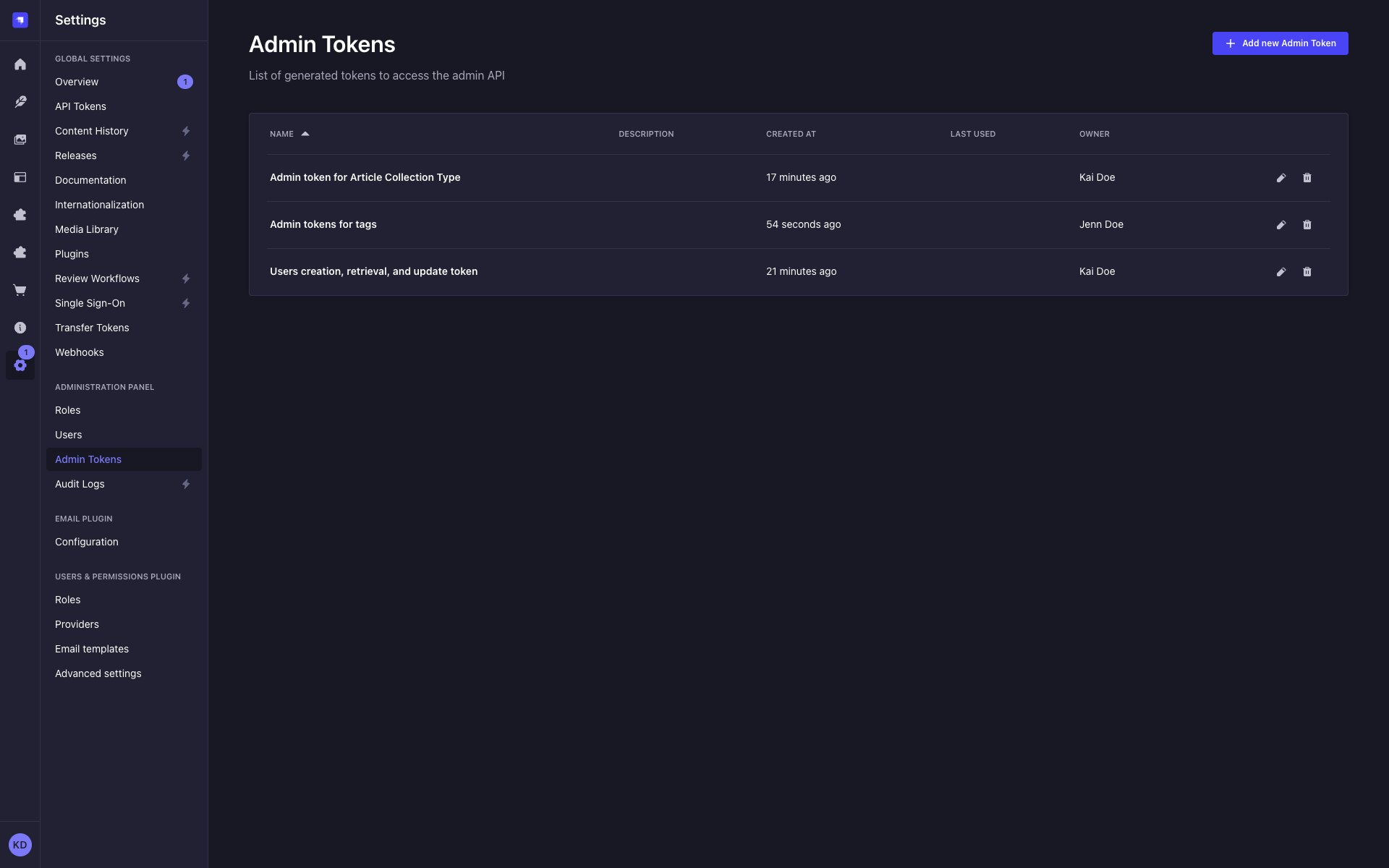
Admin tokens have a dedicated settings page at Settings > Administration Panel > Admin Tokens. The Admin Tokens page and the API Tokens page are independent interfaces, not filtered views of a shared list.
The Admin Tokens page displays an Owner column showing the display name of each token's owner.
A token can only be edited or deleted by its owner or a super-admin.
When a super-admin views an Admin token owned by another user, a read-only Owner field appears in the token details panel. The permissions panel shows only the checkboxes within the token owner's permission scope, not the super-admin's unrestricted access.
Removing a permission from a role causes admin tokens owned by users of that role to have the corresponding permission deleted automatically.
- If the token owner's account is deleted, all Admin tokens owned by that user are automatically deleted along with their associated permissions. There is no recovery path. Rotate and replace Admin tokens before offboarding a team member who owns them.
- If the token owner's account is deactivated or blocked, any request authenticated with that owner's Admin token returns
401 Token owner is deactivated. The token itself is not deleted. Re-activating or unblocking the owner restores token functionality.
Regenerating an Admin token
The Regenerate button is only visible to the token's owner. Other users, including super-admins, do not see this button for tokens they do not own.
To regenerate an Admin token:
- Click on the Admin token's edit button.
- Click on the Regenerate button.
- Click on the Regenerate button to confirm in the dialog.
- Copy the new Admin token displayed at the top of the interface.
Usage
Admin tokens authenticate requests to Strapi Admin API routes. Add the token to the Authorization header of your request using Bearer syntax:
curl -X GET \
  https://your-strapi-instance.com/admin/content-manager/collection-types/api::article.article \
  -H "Authorization: Bearer your-admin-token"
Never expose Admin tokens in client-side code. Store them in a secrets manager or environment variable.